A stream key is the private string that ties your broadcasting software to your Twitch channel. Drop it into a program such as OBS Studio or Streamlabs and it points Twitch at the right account, so your video lands where it belongs. Leave it out and the software has nothing to aim at — it cannot tell which channel the broadcast is meant for.
What follows covers where the key sits in 2026, how to wire it into your software, and — no less important — how to keep it to yourself. Think of it as a broadcasting password; handling it with a little care is worth the small effort. Bear in mind that Twitch reworks its layout now and then, so the labels on your screen may not match these word for word.
Where to locate the key
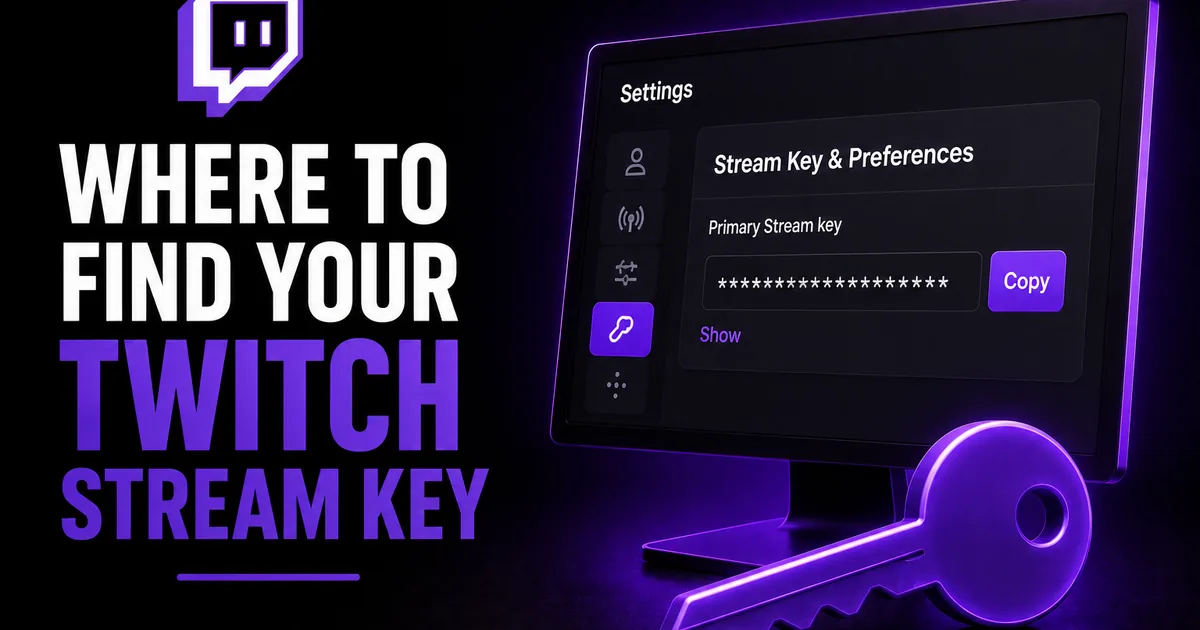
The key sits inside the Creator Dashboard, tucked within your stream settings. Sign in to Twitch from a desktop browser, click your profile menu, and head into the Creator Dashboard; from there, open the Settings area and find the Stream section nested inside it.
That Stream settings page holds the Primary Stream Key, typically masked behind a row of dots alongside buttons to show or copy it. Those two controls let you lift the key without leaving it bare on screen for longer than you need.
- Sign in to Twitch using a desktop browser
- Click your profile menu and choose the Creator Dashboard
- Head to Settings and open the Stream section
- Locate the Primary Stream Key, with its show and copy buttons
Wiring the key into your software
With the key copied, drop it into the stream settings of whatever broadcasting program you run. Take OBS Studio: you open Settings, move to the Stream section, set Twitch as the service, and place the key in the Stream Key box. Streamlabs and the rest walk you through much the same sequence.
A lot of programs now include a connect-account sign-in as well, which hooks up to Twitch without ever putting the raw key in your hands. Where that choice exists and appeals to you, it tends to be both easier and safer than shuttling the key across by hand.
- Open the Settings, then the Stream section, in your software
- Set Twitch as the streaming service
- Drop the key into the Stream Key box, or sign in through connect-account
- Save your changes and run a short test before you go live
Why it has to stay private
The key is sensitive for one plain reason: whoever holds it can broadcast to your channel exactly as though they were you. That is the logic behind Twitch masking it out of the box, and the reason it deserves the caution you would give a password rather than a setting you pass around.
Keys most often slip out during the broadcast itself. Share your software's settings on screen, or let your dashboard show up on camera, and the key can end up in front of everyone watching. Before you put your screen on display, shut those settings panels and give the frame a second look to be sure the key is nowhere in view.
- Keep your stream settings and dashboard off the screen while live
- Never drop the key into a chat, an email, or a screenshot
- Stay wary of outside tools that request the raw key
- Handle the key as a password, not something to hand around
Resetting a key that has gotten out
Suspect your key has been seen by someone it should not have? Reset it. The same Stream settings page where the key lives carries a control to reset or generate a replacement. The moment you do, the previous key stops working, and anyone who copied it is locked out.
Once it is reset, swap the new key into your broadcasting software, because the old one is now dead. Generating a fresh key leaves your followers, your VODs, and your channel settings untouched — all it alters is the code your software leans on to connect.
A brief note on growing the channel
Getting the stream key in place is the plumbing, but a clean broadcast only accounts for part of the job. Once the stream is running, newcomers still judge a channel in seconds, and a solid follower count helps you read as established while the real momentum builds.
Social WOW supplies Twitch viewers pulled from genuine sources, needing only the public link to your channel, never a password, and it stands behind them with a refill guarantee. That can give the live social proof on a stream a head-start, though it replaces neither strong content nor any promise of chat, follows, or growth over the long run — those you earn by turning up and streaming well.