Pointing viewers toward other channels is one of the quieter, more useful moves on YouTube. It lets you back the creators you admire, keep your channel page organized, and lay the groundwork for the sort of rapport that turns into real collaboration later. Someone who reaches the foot of your page and finds a tidy set of featured channels learns, at a glance, what you care about and whose company you keep.
Below, you will find what the featured channels section actually is, how to set it up and order it inside YouTube Studio, and how to put it to work for honest cross-promotion. We will also walk through the manners of featuring other people, the kind of outcome you can reasonably expect, and why social proof decides whether those referred clicks ever turn into subscribers.
How the featured channels section works
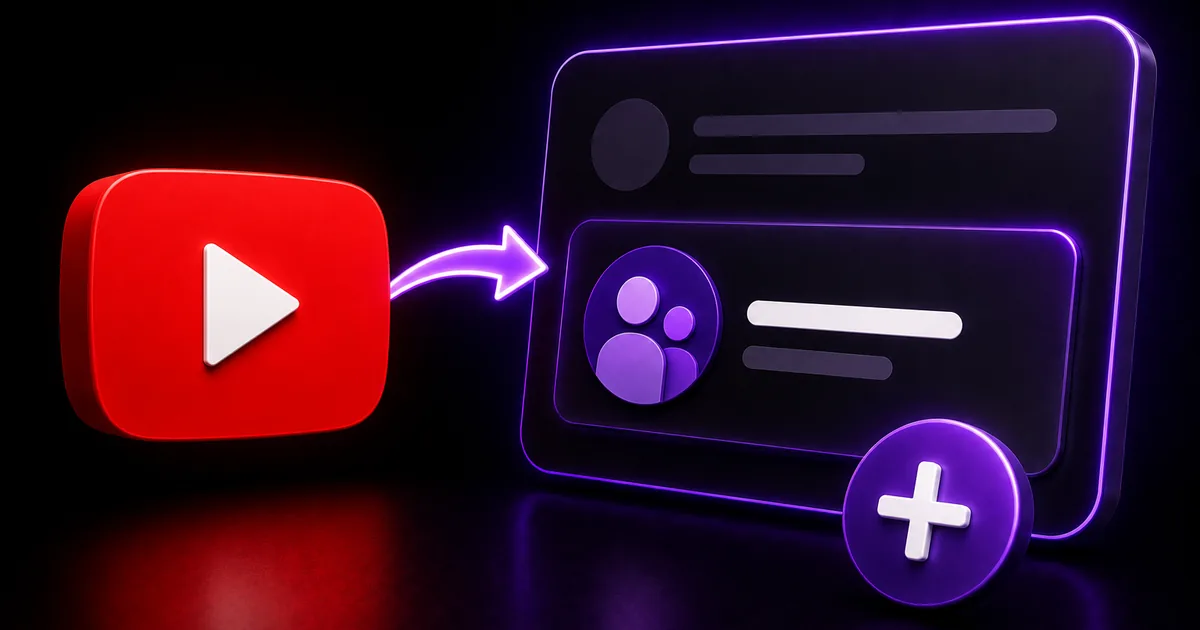
The featured channels section is a slot on your channel page set aside for pointing to other people's channels. You will normally find it lower down on the home tab, laid out as a strip or list of the channels you have decided to spotlight. Anyone browsing can tap through to them directly, which turns the whole block into a low-effort referral tool.
Creators reach for it in a few situations: to nod to people they have worked with, to steer regulars toward a second channel of their own, or to gather several accounts from one niche in a single place. Since it lives on the channel page rather than inside one upload, it keeps recommending in the background instead of fading like a single mention in a video. YouTube also reworks Studio now and then, so the wording and arrangement you see may differ from these labels.
- A block on your channel page that points to other channels
- Sits low on the home tab in most layouts
- Sends visitors straight to whichever channels you pick
- Handy for collaborators, your own second channel, or a niche grouping
Setting them up inside YouTube Studio
The controls live in the customization part of YouTube Studio, the same place you shape the rest of your channel page. There is nothing fancy to it: you open up a section, edit it, and pick out the channels you want on display. What follows is the route most people take, keeping in mind that Studio's menus get shuffled around from time to time.
You are free to line up more than one channel, shuffle their order, and pull the list apart or refresh it at any point. Think of it as a living panel that mirrors whoever you happen to be collaborating with or recommending right now.
- In YouTube Studio, head to Customization and then the Layout tab
- Find the sections list and start a new channel section or edit one
- Pick the Featured channels option, then search out the accounts you want
- Drag the most fitting ones to the top of the order
- Save, then open your live channel page to check how it reads
Putting the section to work for cross-promotion
The section earns its keep when it runs both ways. Feature a collaborator who then features you back, and each channel starts funneling curious viewers toward the other, which beats a list that only points outward. A quick message, a mutual agreement to list one another, and you have built a tidy circuit of promotion that pays off for both sides.
Be picky about the names you add. A tight roster drawn from a related niche reads far more clearly than a sprawling, scattershot pile. People who already enjoy what you make will tend to click with channels sharing your subject or tone, so relevance and quality matter more than sheer numbers.
- Set up reciprocal features so traffic moves in both directions
- Keep every pick tied to your niche and the people who watch you
- Update the roster whenever your partnerships shift
- Back it with mentions in your videos or community posts for extra reach
Manners, honest expectations, and turning clicks into subscribers
Good manners matter here. Check in with someone before you assume they want a formal swap, and do not treat adding a channel as an automatic claim on a feature back. Putting a channel on your page is a real endorsement, so save the slots for creators you would happily recommend to a friend. Keep your expectations grounded as well: a featured list brings a slow drip of interested visitors over the long run, not a sudden rush.
Once someone lands on a channel you have featured, the usual first-impression rules apply, just as they would for any newcomer. A page that already looks lived-in — a handle people recognize, a subscriber count that reads as solid — stands a better chance of turning that idle click into a follow. Social WOW can lend a hand with that social proof, sending YouTube subscribers from genuine, active accounts off nothing more than your public channel link, no password to hand over, and a refill guarantee behind it. It makes no promises about views or monetization, though it can shore up the credibility that cross-promotion quietly steers people toward.